
Ever tried setting up website hosting and felt completely lost? You stare at technical terms like DNS, cPanel, and SSL certificates, wondering what language they’re speaking. And all this time, your website remains offline while competitors capture customers you’re missing.
CloudPap for hosting simplifies everything. You don’t need coding skills or tech experience. Just follow clear steps, and your website will go live quickly.
Let’s dive right in.
1) Sign Up for CloudPap
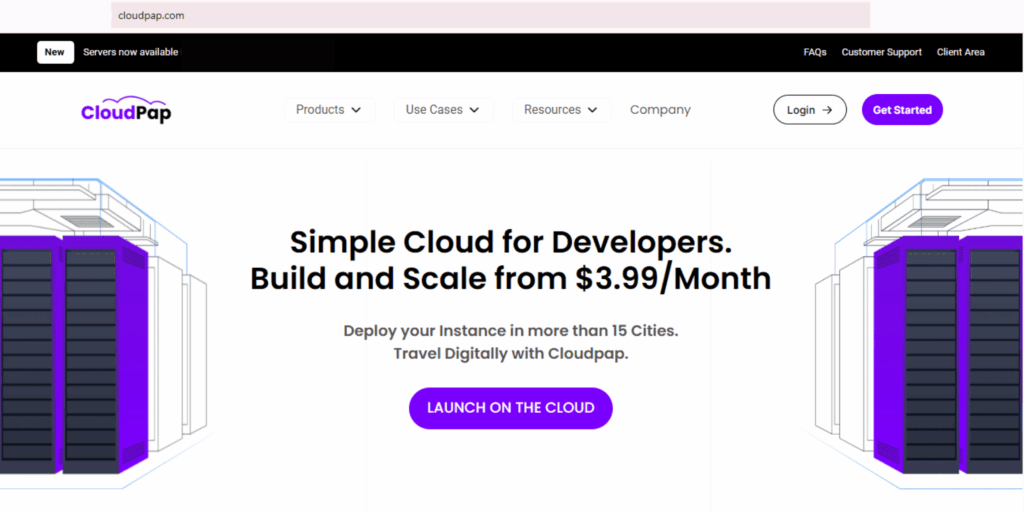
Setting up CloudPap for hosting starts with creating your account. This takes about three minutes.
Go to CloudPap.com
Open any web browser on your computer or phone. Type “CloudPap.com” in the address bar and press Enter.
The homepage loads with a big “Launch on the Cloud” or “Get Started” button. Click it to begin.
Enter Your Information
Fill out the registration form with your details. Type your email address first. Use one you check daily.
Create a strong password next. Mix uppercase letters, lowercase letters, numbers, and special characters. Avoid simple passwords like “123456” or your birthday.
Add your full name and company name if you have one. CloudPap uses this information for billing and support.
Verify Your Email
CloudPap sends a confirmation email immediately. Open your inbox and look for our message.
Click the verification link inside. This activates your account and confirms you own that email address.
Can’t find the email? Check your spam folder. Sometimes automated emails land there by mistake.
Add Payment Details
Navigate to your account settings. Click “Billing” or “Payment Methods” from the menu.
Enter your credit card, debit card, or PayPal information. CloudPap for hosting encrypts all payment data, keeping it secure.
You won’t get charged yet if you’re on a free trial. Payment starts when the trial ends or when you choose a paid plan.
2) Choose Your Hosting Plan
CloudPap for hosting offers several plans. Here’s how to pick the right one.
Review the Plan Options
Click “Hosting Plans” in your dashboard. You’ll see different tiers listed with features and prices.
We offer Starter, Professional, and Business plans. Each includes different amounts of storage, bandwidth, and tools.
Read what each plan provides. Note the storage space, monthly visitor limits, and included features.
Match Plans to Your Needs
Starting a simple blog? The basic plan works perfectly. Running an online store? You’ll need more resources.
Small websites with mostly text need 5-10 GB of storage. Photography portfolios need 20-50 GB. Video sites require 100+ GB.
Think about monthly visitors, too. New sites might get 1,000 visits monthly. Established businesses could see 50,000+. Most small business websites serve under 10,000 monthly visitors.
Compare Prices and Features
Look beyond monthly costs. Check what comes included: free SSL certificates, automatic backups, email accounts, and customer support.
Some plans bundle extras like website builders or marketing tools. Calculate total value, not just price.
Yearly payments often save 15-20% compared to monthly billing. Pay annually if your budget allows.
Select Your Plan
Click “Choose Plan” under your preferred option. Review the order summary carefully.
Confirm the plan name, billing cycle, and total price match your expectations.
Click “Purchase” or “Subscribe” to finalize. CloudPap for hosting processes your payment and activates your plan within minutes.
3) Launch Your First Website
Getting your website online through CloudPap for hosting follows simple steps.
Access Your Control Panel
Log in to CloudPap and find your dashboard. Look for “cPanel” or “Control Panel” in the main menu.
Click it to open your hosting control panel. This is where you manage everything, from files, databases, emails, and settings.
The interface shows icons for different functions. Don’t worry if it looks busy. You’ll only use a few tools regularly.
Install Your Website Platform
Most people use WordPress, but CloudPap supports Joomla, Drupal, and other platforms too.
Find the “Softaculous” or “App Installer” icon in your control panel. Click it to see available platforms.
Click “WordPress” (or your preferred platform). Then click “Install Now.”
Fill out the installation form. Choose your domain name from the dropdown menu. Create an admin username and password for your website.
Click “Install” at the bottom. CloudPap for hosting installs everything automatically in 1-2 minutes.
Configure Basic Settings
After installation completes, you receive a confirmation with your website URL and login details.
Click the admin URL to access your website dashboard. It looks like: yoursite.com/wp-admin.
Log in using the username and password you just created.
Set your site title and tagline under Settings > General. These appear in search results and browser tabs.
Choose a theme under Appearance > Themes. This controls how your website looks. Pick one that matches your business style.
Add Your First Content
Click “Posts” or “Pages” in your website dashboard to add content.
For a homepage, click Pages > Add New. Type your page title and content in the editor. The interface works like Microsoft Word—simple and familiar.
Add images by clicking “Add Media” above the editor. Upload photos from your computer.
Click “Publish” when finished. Your page goes live immediately.
Connect Your Domain
If you bought a domain separately, connect it to CloudPap for hosting now.
Go to your CloudPap dashboard (not your website dashboard). Click “Domains” in the menu.
Click “Add Domain” or “Connect Existing Domain.” Enter your domain name.
CloudPap provides nameserver addresses. Copy these—they look like ns1.cloudpap.com and ns2.cloudpap.com.
Log in to your domain registrar (where you bought the domain). Find DNS or nameserver settings.
Paste CloudPap’s nameservers there. Save changes.
Domain connections take 2-24 hours to complete. Most finish within 4 hours. Your website becomes accessible at your custom domain once complete.
4. Upload and Manage Files
CloudPap for hosting offers multiple ways to manage your website files.
Use the File Manager
Open your CloudPap control panel. Click “File Manager” to browse your hosting files.
You’ll see folders like public_html, which contain your website files. Double-click folders to open them.
To upload files, click “Upload” at the top. Select files from your computer. They transfer to CloudPap instantly.
Drag and drop works too. Select files on your computer and drag them into the File Manager window.
Organize Your Files
Create new folders by clicking “New Folder.” Name them clearly—like “images” or “documents.”
Move files by selecting them and clicking “Move.” Choose the destination folder.
Delete unwanted files by selecting them and clicking “Delete.” Confirm when prompted.
Keep your files organized. Good structure helps you find things quickly and keeps your website running smoothly.
Edit Files Directly
Need to change code? Right-click any file and select “Edit.”
The code editor opens in your browser. Make your changes directly.
Click “Save Changes” when done. Updates apply immediately to your live website.
This feature helps with quick fixes. For major changes, use proper development tools instead.
Set File Permissions
Some files need specific permissions to work correctly. Right-click a file and select “Permissions” or “Change Permissions.”
You’ll see checkboxes for read, write, and execute permissions. Most files use 644 permissions. Folders typically use 755.
CloudPap for hosting sets the correct permissions automatically during installation. Only change these if troubleshooting specific problems.
5. Create Email Accounts

Professional email addresses build trust. Here’s how to set them up with CloudPap for hosting.
Access Email Settings
From your CloudPap control panel, click “Email Accounts” or “Email.”
You’ll see options to create new accounts, manage existing ones, and configure settings.
Create New Email Addresses
Click “Create Email Account” or the plus icon.
Enter the desired email name. For example, type “info” to create info@yoursite.com.
Set a strong password for this email account. Write it down securely.
Choose a mailbox size. 250 MB works for light use. Heavy email users need 1-5 GB.
Click “Create Account.” Your new email activates immediately.
Configure Email on Your Devices
CloudPap provides setup guides for different devices. Click “Configure Email Client” next to your new email.
Follow instructions for iPhone, Android, Outlook, or other email programs you use.
You’ll need server settings like IMAP and SMTP addresses. CloudPap displays these clearly—just copy and paste them.
Most modern email apps detect settings automatically when you enter your email and password.
Manage Email Forwarding
Want emails sent to one address forwarded to another? Click “Forwarders” in the email section.
Click “Add Forwarder.” Enter the source address and destination address.
For example, forward sales@yoursite.com to your personal Gmail. You’ll receive all business emails in one place.
6. Install SSL Certificates
SSL certificates encrypt data between your website and visitors. They’re essential for security and trust.
Access SSL Settings
In your CloudPap control panel, find “SSL/TLS” or “Security.”
Click it to see SSL options and currently installed certificates.
Install Free SSL Certificate
CloudPap for hosting includes free SSL certificates through Let’s Encrypt. This saves you $50-200 yearly compared to paid certificates.
Click “Install Free SSL” or “Let’s Encrypt.”
Select your domain from the list. Click “Install.”
CloudPap processes the request and installs the SSL certificate within 2-5 minutes. According to web security data, 84% of users won’t proceed past a “not secure” warning, making SSL certificates critical.
Verify SSL Installation
After installation, visit your website using “https://” instead of “http://”.
Look for a padlock icon in the address bar. Click it to view certificate details.
If the padlock appears, your SSL works correctly. Visitors now see a secure connection.
Force HTTPS Connections
Make all visitors use the secure HTTPS version automatically.
In your control panel, find “.htaccess editor” or similar.
Add code that redirects HTTP to HTTPS. CloudPap often provides a simple toggle switch for this instead of manual coding.
Save changes. Test by typing your website without “https://”—it should redirect automatically.
7) Set Up Automatic Backups
Backups protect your website from disasters. Here’s how to use CloudPap for hosting backup features.
Enable Automatic Backups
Navigate to “Backups” in your control panel menu.
Click “Enable Automatic Backups” if they’re not active already.
Choose backup frequency: daily, weekly, or monthly. Daily backups provide maximum protection.
Select how many backups to keep. Keeping 7-30 backups balances storage use and recovery options.
Create Manual Backups
Before major changes, create manual backups as insurance.
Click “Backup Now” or “Generate Backup” in the backup section.
Choose full backup (everything) or partial backup (just files or databases).
The backup process takes 5-30 minutes, depending on website size. CloudPap emails you when complete.
Download Backup Files
Click “Download” next to any backup in your list.
Save the file to your computer or external drive. Store backups in multiple locations for extra safety.
Backup files are compressed (zipped) to save space and download faster.
Restore from Backup
Need to restore your website? Click “Restore” next to the backup you want.
Confirm the restoration. CloudPap overwrites current files with backup versions.
This process takes 10-30 minutes. Your website might show a maintenance message during restoration.
Test your website thoroughly after restoring it to ensure everything works correctly.
8. Monitor Website Performance
CloudPap for hosting provides tools to track how your website performs.
Check Resource Usage
In your dashboard, click “Statistics” or “Resource Usage.”
View graphs showing CPU usage, memory consumption, and bandwidth over time.
High resource usage might mean you need to upgrade your plan or optimize your website.
Most small sites use 10-30% of available resources. Consistent usage above 80% suggests upgrade time.
Review Visitor Analytics
CloudPap often integrates basic analytics showing visitor numbers, popular pages, and traffic sources.
Click “Analytics” or “AWStats” in your control panel.
Study which pages get the most views. This information guides content decisions.
See where visitors come from—search engines, social media, or direct links. Focus marketing efforts on channels that work best.
Monitor Uptime
Uptime measures how often your website stays online. CloudPap aims for 99.9% uptime, meaning less than 9 hours of downtime yearly.
Check uptime reports in your dashboard under “Status” or “Monitoring.”
If you notice frequent downtime, contact support immediately. Persistent problems might indicate server issues.
Test Page Speed
Fast websites keep visitors happy. Click “Speed Test” if CloudPap offers this tool.
Page speed affects search rankings, too. Google penalizes slow websites in search results.
Aim for loading times under 3 seconds. Research indicates 53% of mobile users abandon sites that take over 3 seconds to load.
Optimize images, enable caching, and minimize code to improve speed.
9) Get Help and Support
Everyone needs assistance sometimes. Here’s how to use CloudPap for hosting support resources.
Access the Knowledge Base
CloudPap maintains detailed guides and tutorials. Click “Help” or “Knowledge Base” in your dashboard.
Search for topics using keywords. Articles explain common tasks step-by-step with screenshots.
Most questions get answered here faster than waiting for support tickets.
Submit Support Tickets
For specific problems, open a support ticket. Click “Support” and then “New Ticket.”
Describe your issue clearly. Include relevant details like error messages, when problems started, and what you’ve tried already.
Attach screenshots if helpful. Visual information helps support staff diagnose problems faster.
Support typically responds within 2-24 hours, depending on your plan and issue urgency.
Use Live Chat
Many CloudPap plans include live chat support. Look for a chat icon in the bottom corner of your dashboard.
Click it to connect with support agents in real-time. Chat works great for quick questions.
Live chat operates during business hours. Availability varies by plan level.
Check Community Forums
CloudPap might host user forums where customers help each other.
Search forums for similar problems. Someone likely faced your issue before and found solutions.
Post new questions if existing threads don’t help. Community members and CloudPap staff often respond within hours.
Moving Forward with CloudPap
You now know how to use CloudPap for hosting from signup through daily management. Each step builds on the previous one, creating a complete hosting workflow.
Start by creating your account and choosing the right plan. Launch your website using the control panel tools. Add email accounts, install SSL certificates, and enable backups. Monitor performance regularly and reach out for help when needed.
CloudPap handles complex technical details behind the scenes. You focus on creating content, serving customers, and growing your business. Our platform scales with you, offering upgrades as your needs expand.
Take action today. Sign up, follow these steps, and get your website online. Your online presence starts now.