If you want to host a mobile app that actually performs well under real-world traffic, your backend needs a proper home, and that means a Virtual Private Server.
Unlike shared hosting that packs hundreds of tenants onto one machine, a VPS gives you dedicated resources, full root access, and the flexibility to configure your environment exactly as your app demands.
Be it that you’re running a Node.js API, a Django REST backend, or a Go microservice, the server setup follows the same core pattern.
This guide walks you through every step, from provisioning your VPS to going live, so you can skip the guesswork and get your backend deployed the right way.
Step 1: Choose and Provision Your VPS
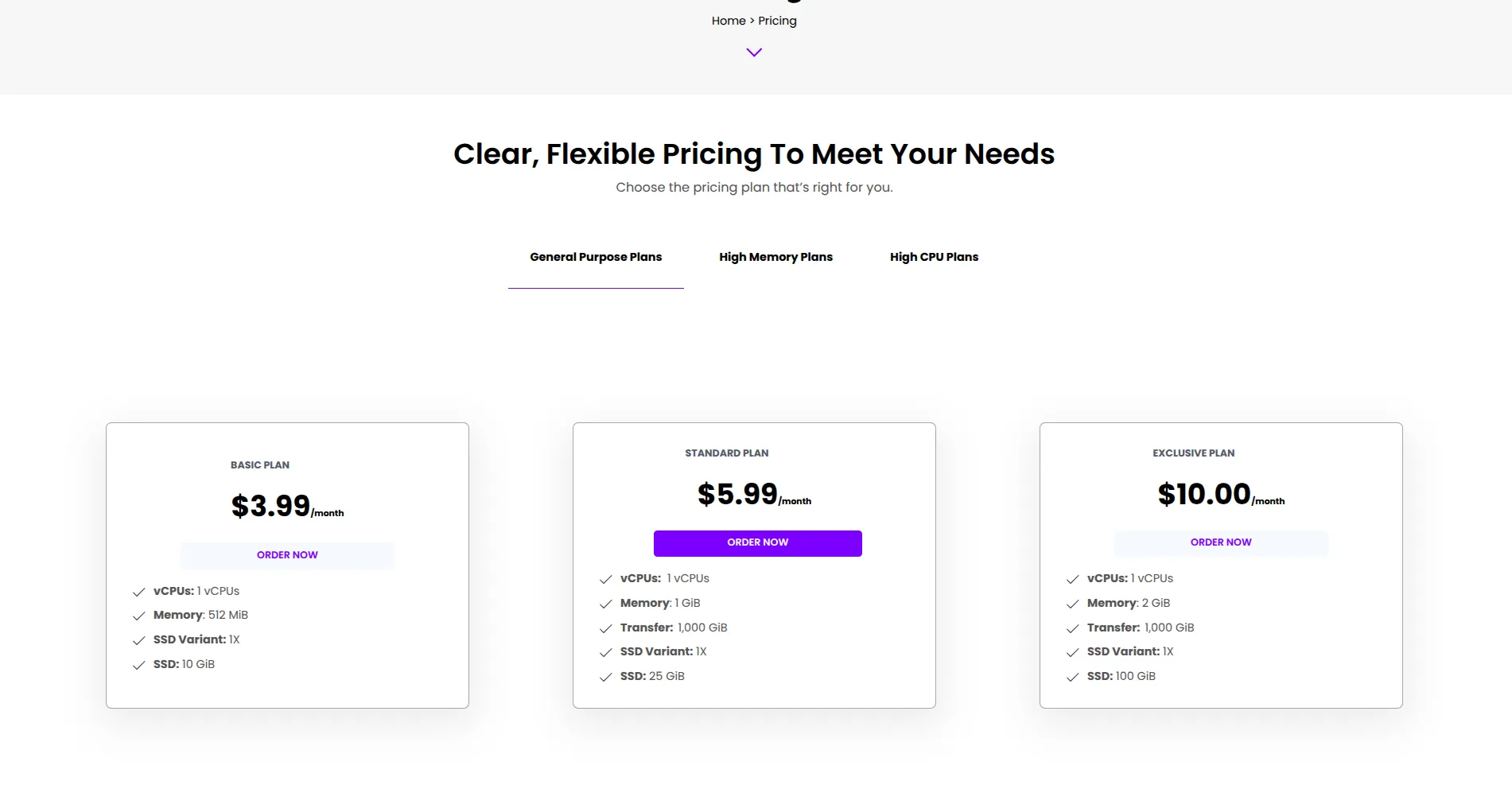
The first decision is your server specs.
For a mobile app backend that’s just launching or handling moderate traffic, a VPS with 2 vCPUs, 4 GB RAM, and 50 GB SSD storage is a solid starting point.
You can always scale vertically, adding more CPU and RAM, or horizontally by spinning up additional instances as traffic grows.
When selecting a provider, look for these key things:
- SSD-backed: storage for fast read/write speeds on your database and file operations
- Data center: location close to your primary users to reduce latency
- Full root: access so you can install any runtime, database, or tool without restrictions
- Scalable: plans that let you upgrade without migrating to a different server
Once provisioned, you’ll receive your server’s IP address and root credentials. Save these, you’ll need them right away.
Step 2: Secure Your Server Before Anything Else
A fresh VPS is exposed to the internet from the moment it boots. Before deploying your app, lock things down.
a) Update the system
SSH into your server and run:
sudo apt update && sudo apt upgrade -yb) Create a non-root user
Running everything as root is a security risk. Create a dedicated user:
adduser appuser usermod -aG sudo appuserc) Set up SSH key authentication and disable password login
Copy your public key to the server using ssh-copy-id, then in /etc/ssh/sshd_config set:
PasswordAuthentication no PermitRootLogin nod) Configure UFW firewall
Only allow the ports your app actually needs:
ufw allow OpenSSH ufw allow 80 ufw allow 443 ufw enableStep 3: Install Your Runtime and Dependencies
Now install the tech stack your backend runs on. The exact commands depend on your language, but here’s the pattern for the most common setups when you host a mobile app backend:
i) Node.js (with NVM, recommended)
curl -o- https://raw.githubusercontent.com/nvm-sh/nvm/v0.39.7/install.sh | bash source ~/.bashrc nvm install --lts nvm use --ltsii) Python (Django / FastAPI)
sudo apt install python3 python3-pip python3-venv -yiii) Database (PostgreSQL example)
sudo apt install postgresql postgresql-contrib -y sudo systemctl enable postgresql sudo systemctl start postgresqlSet up your database user and create a dedicated database for your app. Never connect your app with the postgres superuser account in production.
Need a VPS to host your mobile app backend? Get started with CloudPap with fast SSD servers, root access, and plans from $3.99/month.
Step 4: Deploy Your Backend Application
With your runtime in place, it’s time to get your code onto the server.
Option A: Pull from Git (recommended)
git clone https://github.com/youruser/your-backend.git cd your-backend npm install # or pip install -r requirements.txtOption B: Use a deploy key or CI/CD pipeline
For production setups, configure a deploy key on your GitHub/GitLab repo and automate deployments using GitHub Actions, GitLab CI, or a simple shell script triggered over SSH.
This removes the need to manually SSH in every time you push an update.
Set your environment variables
Store your secrets like API keys, database URLs, JWT secrets in a .env file, never hardcoded in source:
DATABASE_URL=postgres://appuser:password@localhost/appdb JWT_SECRET=your_secret_key NODE_ENV=productionRestrict access to that file: chmod 600 .env
Step 5: Keep Your App Running with a Process Manager
Your backend process will die if you close the SSH session, unless you use a process manager. PM2 is the standard choice for Node.js.
For Python apps, use Gunicorn with systemd.
- PM2 for Node.js
npm install -g pm2 pm2 start app.js --name "mobile-backend" pm2 startup # auto-start on server reboot pm2 save- Systemd service for Python
Create a file at /etc/systemd/system/myapp.service:
[Unit] Description=My Mobile App Backend After=network.target [Service] User=appuser WorkingDirectory=/home/appuser/your-backend ExecStart=/home/appuser/your-backend/venv/bin/gunicorn app:app -w 4 Restart=always [Install] WantedBy=multi-user.targetsudo systemctl enable myapp sudo systemctl start myapp
Step 6: Set Up Nginx as a Reverse Proxy
Your backend typically runs on a port like 3000, 8000, or 5000. You don’t want to expose that port directly.
Install Nginx to sit in front of your app, handle HTTPS termination, and proxy traffic to your backend.
sudo apt install nginx -y
Create a server block at /etc/nginx/sites-available/myapp:
server { listen 80; server_name api.yourdomain.com; location / { proxy_pass http://localhost:3000; proxy_http_version 1.1; proxy_set_header Upgrade $http_upgrade; proxy_set_header Connection 'upgrade'; proxy_set_header Host $host; proxy_cache_bypass $http_upgrade; } }sudo ln -s /etc/nginx/sites-available/myapp /etc/nginx/sites-enabled/ sudo nginx -t sudo systemctl reload nginxStep 7: Add HTTPS with Let’s Encrypt (Free SSL)
Mobile apps communicating over plain HTTP is a non-starter in 2026, both Apple App Store and Google Play enforce HTTPS. Get a free SSL certificate from Let’s Encrypt using Certbot:
sudo apt install certbot python3-certbot-nginx -y sudo certbot --nginx -d api.yourdomain.comCertbot automatically updates your Nginx config to redirect HTTP to HTTPS and sets up auto-renewal via a systemd timer. Run sudo certbot renew –dry-run to confirm auto-renewal works.
Step 8: Set Up Monitoring and Backups
The last piece before calling your backend production-ready is observability and data protection.
When you host a mobile app backend, silent failures can go undetected for hours and cost you users.
i) Basic monitoring
- htop: real-time CPU and memory monitoring
- PM2 logs: tail logs with pm2 logs
- Uptime monitoring: use a free tool like Better Uptime or UptimeRobot to alert you when your API goes down
ii) Automated backups
For database backups, schedule a daily cron job to dump your database and push it offsite.
At CloudPap, we offer Simple Backup, a one-click addon that automatically snapshots your entire VPS at the frequency you choose, so you’re never more than 24 hours from a clean restore point.
# Example daily Postgres backup cron 0 2 * * * pg_dump appdb > /backups/appdb_$(date +%F).sql
Step 9: Test Your API Endpoints Before Going Live
Before pointing your mobile app at the production server, run a full end-to-end test. Use Postman or curl to hit every endpoint your app depends on:
curl -X POST https://api.yourdomain.com/auth/login \ -H "Content-Type: application/json" \ -d '{"email":"[email protected]","password":"secret"}'Check that:
- Response times: are under 300ms for core endpoints
- Auth tokens are: issued and validated correctly
- Database reads: and writes are returning expected data
- Error responses: follow a consistent structure your mobile client can parse
- HTTPS is enforced and HTTP redirects to it
Step 10: Point Your Mobile App at the Production Backend
Update your mobile app’s API base URL from your local or staging environment to your production domain.
Make sure you’re reading this from a config file or environment variable, not hardcoded in the app binary. That way, switching between environments doesn’t require a new app build.
For apps using React Native, Flutter, or native iOS/Android SDKs, store the base URL in a .env file at the app level and inject it at build time using your build tool’s environment variable support.
This is also the right moment to host a mobile app’s push notification service, payment processor webhook, and any third-party integrations, confirm they’re all pointing to your production server and not a dev endpoint.
Your Backend Is Now Ready
Getting to this point means you’ve done the hard work most developers skip.
A VPS gives you the control that managed platforms take away, and once you understand the setup, it’s yours to tune exactly how your app needs it.
The pattern you’ve followed here, secure server, reverse proxy, process manager, SSL, backups, scales cleanly whether you’re serving 100 users or 100,000.
The key is starting with a reliable foundation and not outgrowing your infrastructure before you outgrow your user count.
As your app grows, you can scale your VPS resources, add read replicas for your database, or distribute load across multiple servers, all without rebuilding from scratch.
The stack you’ve set up today handles all of that. When you host a mobile app backend on infrastructure you control, growth stops being a problem and starts being a plan.
Ready to deploy your mobile app backend?