Right now, you’re watching as your disk space meter creeps toward 100% and feel your stomach drop.
You’re running a growing business or managing applications that users depend on. Everything works perfectly until that dreaded alert hits your inbox: “Warning: Disk space critically low.” Your heart races.
Applications start throwing errors.
Database writes fail.
Users report problems.
You need more storage immediately, but you’re terrified that expanding disk space will crash everything.
The fear makes sense.
Traditional server upgrades meant scheduling downtime, backing up terabytes of data, provisioning new hardware, migrating everything over, and praying nothing breaks during the process. One wrong command could wipe databases. One misconfiguration could leave your server unbootable.
These risks keep you, as a system administrator, awake at night.
Modern cloud infrastructure changed this nightmare scenario completely. You can now expand server storage while applications keep running, users stay connected, and databases continue processing transactions. No downtime. No complex migrations. No panic.
Here’s what you’ll learn in this guide:
- Warning signs that your server needs more storage right now
- Four safe methods to expand server storage without taking systems offline
- Step-by-step instructions anyone can follow
- Real cost comparisons between different expansion approaches
- Common mistakes that cause problems (and how to avoid them)
- When to choose each storage expansion method for your situation
Let’s get started and solve your storage crisis the smart way.
How to Tell When Your Server Needs More Space

Storage doesn’t just disappear overnight. Your server sends clear warning signals long before complete failure. Recognizing these signs early gives you time to expand server storage calmly instead of frantically.
Performance Slowdowns
- Applications that normally load in seconds suddenly take minutes.
- Database queries timeout.
- File uploads hang halfway through.
These symptoms often point to disk space problems rather than CPU or memory issues.
When your hard drive fills beyond 80% capacity, the operating system struggles to find contiguous space for new files. It fragments data across different disk sectors, forcing read/write heads to jump around constantly.
This mechanical dance slows everything down.
Application Errors and Crashes
- Programs crash with cryptic error messages about “unable to write” or “disk full.”
- Your web server refuses new connections.
- Email stops sending.
- Backup scripts fail silently.
Most unplanned server outages stem from storage capacity issues rather than hardware failures. Running out of disk space causes more downtime than most people realize.
Database Problems
Databases need temporary space for sorting, indexing, and query operations. When disk space drops below 10%, databases can’t create these temporary files.
- Transactions fail.
- Data corruption risks increase.
- Some database systems shut down completely to prevent corruption.
Log File Explosions
Logs grow quietly in the background. A single busy day generates gigabytes of access logs, error logs, and application logs. Over months, log directories consume hundreds of gigabytes. Many servers run out of space simply because nobody cleaned old logs.
Failed Deployments
You try deploying new application code. The deployment starts, then fails partway through. Rolled-back code leaves your application in a broken state. The culprit?
Not enough disk space to extract new files alongside old ones during deployment.
Once you spot these warning signs, it’s time to expand server storage before problems escalate into disasters. How do we do that?
Method 1: Add Block Storage Volumes (The Fastest Solution)
Think of block storage like plugging an external hard drive into your laptop, except it happens instantly through software, and the drive lives in a data center instead of on your desk.
How Block Storage Works
Cloud providers offer storage volumes separate from your main server. You provision a new volume (choosing a size like 100GB, 500GB, or more), attach it to your running server, and suddenly have additional space available.
The entire process takes minutes. Your server never restarts. Users never disconnect. Applications keep running while you expand server storage capacity.
Step-by-Step Process
First, log in to your hosting dashboard. Look for sections labeled “Block Storage,” “Volumes,” or “Additional Storage.” Click Create new volume.
Choose your desired size.
Cloud platforms let you start small and expand later, so don’t feel pressured to overprovision. A 100GB volume costs around $10 monthly with most providers.
Attach the volume to your server.
The dashboard shows your server name. Select it and confirm the attachment. Within seconds, the new storage connects to your server.
Now SSH into your server (or use the web console).
Format the new volume using simple commands. Create a mount point (a directory where the new storage appears), and mount the volume. Your operating system now sees the additional space.
Move data to the new volume or configure applications.
Finally, move data to the new volume or configure applications to use the new space for future files. For example, move log files to the new/latest volume, or configure your database to store new tables there.
When Block Storage Makes Sense
This method shines when you need storage expansion immediately. No planning. No complex procedures. Just a quick additional capacity.
Block storage also separates different data types cleanly.
- Keep your operating system and applications on the primary disk.
- Put databases on one volume.
- Store media files on another.
This organization makes backups easier and improves performance.
The flexibility helps with scaling, too. Need 200GB more next month? Attach another volume in minutes.
CloudPap makes this simple across 15+ global cities, letting you expand server storage wherever your applications run.
Method 2: Resize Your Existing Disk While Everything Runs
Modern cloud platforms support live disk resizing, expanding your main storage without shutting down your server. It feels like magic the first time you watch it happen.
The Live Resize Process
Traditional disk expansion required stopping your server, detaching the disk, creating a larger copy, reattaching it, and restarting. This process meant 30-60 minutes of downtime minimum.
Live resizing happens differently. You tell the cloud platform, “make this disk bigger.” The platform expands the virtual disk in the background while your server operates normally. Once expansion completes, you run a few commands to tell your filesystem about the new space.
Live resizing reduces expansion time compared to traditional backup-restore methods. What used to take an hour now takes five minutes.
How to Resize Live
Log in to your cloud provider’s control panel.
Find your server and view its disk configuration. Look for options like “Resize,” “Expand,” or “Increase Capacity.”
Select your new desired size.
Most platforms show current usage and recommend minimum safe sizes. Add at least 50% more than your current needs to avoid repeating this process soon.
Click confirm.
The platform begins expanding your virtual disk in the background. This takes 1-5 minutes, depending on size. Your server keeps running during this entire process.
Once expansion completes, SSH into your server.
Run filesystem expansion commands (specific commands depend on your filesystem type, ext4, XFS, etc.). These commands tell your operating system to use the newly available space.
Verify the expansion worked by checking disk usage.
The output should show your new, larger disk size with plenty of free space available.
Important Limitations
Live resizing only works in one direction: Bigger. You can’t shrink disks this way. Plan carefully before expanding.
Some older operating systems or filesystem types require brief restarts. Check your cloud provider’s documentation for your specific setup.
The process works best with modern filesystems like ext4 or XFS. Older filesystems might need different procedures or cause brief service interruptions during filesystem expansion.
Method 3: Network-Attached Storage for Shared Access
Network-attached storage (NAS) creates centralized storage that multiple servers access simultaneously. Think of it like a shared drive at an office. Everyone connects to the same storage location.
When NAS Solutions Help
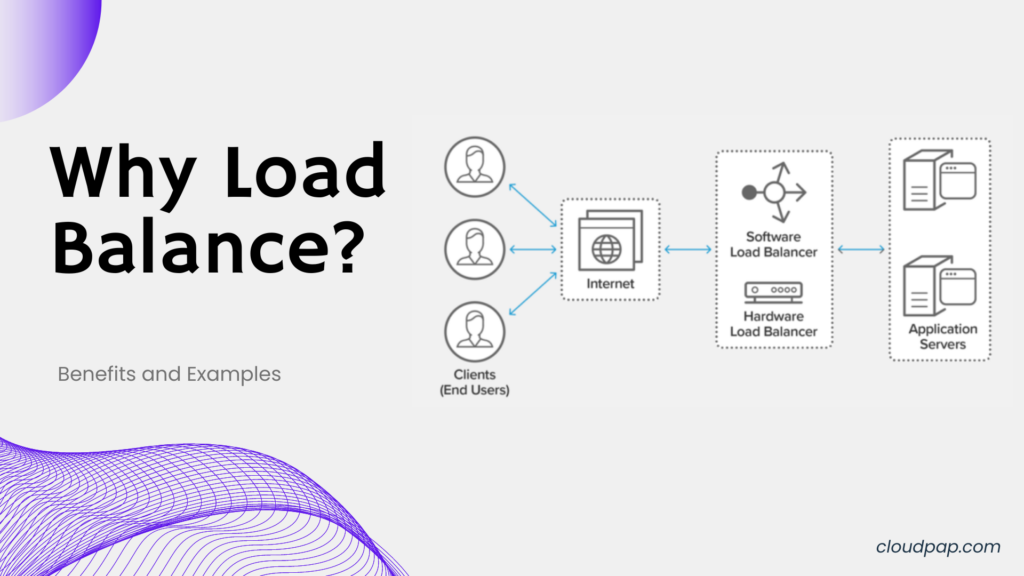
Imagine running three web servers behind a load balancer. Users upload images to your application. Without NAS, each server stores its own copy of uploaded images. This wastes space and creates synchronization headaches.
With NAS, all three servers connect to the same storage. Users upload images once. All servers see them immediately. You expand server storage once instead of three times.
Common Use Cases
Media-heavy applications benefit most from NAS.
Photo sharing platforms, video streaming services, and file storage applications store terabytes of media files. Centralizing this storage simplifies management and reduces costs.
Shared configuration files work well on NAS, too.
If you run ten application servers that all need identical configuration files, storing configs on NAS means updating one location instead of ten.
Log aggregation systems collect logs from multiple servers into centralized storage. NAS provides the perfect collection point where log analysis tools can process data from all your servers.
Performance Considerations
NAS introduces network latency. Reading a file from the local disk takes microseconds. Reading from NAS takes milliseconds. For most files, this difference means nothing. Users won’t notice.
Databases need fast storage for optimal performance. Running your database entirely on NAS might slow transactions. Many setups keep databases on local fast storage while moving less critical files to NAS.
The trade-off between performance and flexibility depends on your specific application. Test with your workload to find the right balance.
Setting Up NAS
Most cloud providers offer managed NAS services. You provision storage capacity (like 1TB), then receive connection information (IP address and credentials).
Mount the NAS on your server using standard protocols like NFS (Linux) or SMB (Windows). The process resembles mounting block storage. Create a mount point, run the mount command, and the storage appears as a directory.
Configure applications to use the NAS mount point for appropriate data types. Move existing files to NAS if needed. Your applications see regular directories and don’t know storage lives on a separate system.
Method 4: Scale Horizontally Across Multiple Servers
Sometimes the answer to “how do I expand server storage” is “add more servers” instead of making one server bigger.
Understand Horizontal Scaling
Vertical scaling means making one server more powerful, with more CPU, more RAM, and more storage. Horizontal scaling means adding more servers and distributing work among them.
For storage, horizontal scaling distributes data across multiple servers. Instead of one server with 2TB storage, you run four servers with 500GB each. Total capacity stays the same, but you gain redundancy and performance.
When to Scale Horizontally
Traffic growth pushes you toward horizontal scaling. One server handles 10,000 daily visitors easily. At 100,000 daily visitors, that server struggles. At 1 million visitors, one server becomes impossible.
Geographic distribution requires multiple servers, too. Serving customers in New York, London, and Tokyo from a single server means slow speeds for two of those locations. Placing servers in all three regions improves performance for everyone.
High availability demands redundancy. If one server holds all your data and that server fails, your entire application goes offline. Spreading data across multiple servers means single failures don’t cause complete outages.
Studies show that businesses running multi-server architectures experience 78% less downtime than single-server setups. Redundancy protects against both planned and unplanned outages.
CloudPap Multi-Region Strategy
CloudPap makes horizontal scaling simple. Deploy servers across 15+ global cities from one dashboard. Each server costs as little as $3.99 monthly, making multi-region deployments affordable even for small projects.
Place application servers in three regions.
Configure storage to replicate across regions automatically.
If one region experiences problems, the other two continue serving traffic seamlessly.
This approach not only provides storage redundancy but also improves application performance. Users in each region connect to nearby servers, reducing latency and improving load times.
Implementation Steps
Start by designing your data distribution strategy. Which data needs replication? Which data can partition across regions? Planning prevents migration headaches later.
Deploy your first additional server in a new region.
Configure data synchronization between regions using tools like rsync, database replication, or object storage APIs.
Update your application to distribute requests across regions. Load balancers or DNS-based routing send users to appropriate servers based on their location.
Monitor storage usage across all regions. As one region grows, expand server storage there using block storage or live resizing.
The multi-server setup gives you flexibility to expand server storage where needed most.
Pre-Expansion Checklist: Avoid Expensive Mistakes
Before you expand server storage through any method, complete these critical preparation steps. Skipping these causes most storage expansion failures.
Create Fresh Backups
Murphy’s Law applies especially to server operations. The moment you think “this is simple, nothing will go wrong” is precisely when problems occur. Back up everything before expansion attempts.
Most storage expansions succeed without issues. That 2% failure rate means nothing until you’re in that unlucky 2%. Fresh backups turn potential disasters into minor inconveniences.
Analyze Current Usage
Don’t blindly add storage without knowing what consumes space currently. Run disk usage analysis tools. Identify which directories hold the most data. Understand what’s growing fastest.
System administrators report that cleanup operations free an average of 35GB on servers thought to be “full.” Often, you can reclaim 20-40% of disk space through simple cleanup before expanding anything.
- Delete old log files that nobody references.
- Remove package manager caches.
- Clean temporary directories.
- Archive old backups to separate storage.
These simple steps might solve your storage crisis without expansion.
Calculate Future Needs
Expanding to exactly your current usage means repeating this process in three months. Add buffer space for growth. If you need 100GB today, provision 200GB. The extra cost is minimal compared to managing frequent expansions.
Review growth trends. If storage consumption increased 20GB monthly for the past six months, expect that trend to continue. Plan accordingly.
Schedule Appropriately
Even “zero downtime” expansion methods benefit from timing. Schedule during low-traffic periods when possible. Early morning hours on weekdays work well for business applications. Late-night works for consumer applications.
Weekend maintenance windows give you breathing room if unexpected issues arise. You can troubleshoot problems without facing angry users demanding immediate fixes.
Test in Staging First
If you run staging or development environments, test your expansion procedure there first. Work out any quirks with your specific setup. Document the exact commands that work.
This testing reveals gotchas before they affect production. Maybe your filesystem needs special flags. Maybe your application caches disk space information and needs restarting.
Better to discover these details in staging.
After Expansion: Verification and Monitoring
You’ve successfully expanded server storage. Don’t walk away yet. Verify everything works correctly and set up monitoring to prevent future surprises.
Verify Available Space
Run disk usage commands and confirm that new space appears. The numbers should match what you provisioned. If you added 100GB, your available space should increase by approximately 100GB.
Test writing files to the new storage. Create test files in directories that will use the expanded space. Verify applications can write without errors.
Restart Relevant Services
Some applications cache disk space information at startup. They might still think storage is full even after expansion. Restarting these services refreshes their information.
Databases, web servers, and application servers often benefit from restarts after storage expansion. Plan restarts during low-traffic periods to minimize user impact.
Update Monitoring Thresholds
Your monitoring system probably alerts at specific disk usage percentages. If you doubled your storage, those percentage-based alerts might never trigger because the usage percentage dropped significantly.
Update alert thresholds to match your new capacity. Set alerts at:
- 70% capacity: start planning next expansion
- 80% capacity: expansion becomes priority
- 90% capacity: urgent action required
These graduated alerts give you early warning before problems occur.
Document Everything
Write down exactly what you did.
- Which method did you choose?
- What commands did you run?
- How long did the process take?
- What problems did you encounter?
This documentation helps when you expand server storage again in six months. You won’t remember specific commands or gotchas. Your notes serve as a playbook for future expansions.
Share documentation with your team. If you’re on vacation when storage issues arise, teammates can follow your documented procedures to solve problems without you.
Cost Analysis: Finding Your Most Affordable Option
Different storage expansion methods carry different costs. Understanding these differences helps you choose the right approach for your budget and needs.
Cleanup: Free but Limited
Cleaning existing storage costs nothing but time. Spend an hour deleting unnecessary files, and you might free 50-100GB. This buys time while you plan proper expansion.
The limitation is obvious. Cleanup only works once. After removing all the unnecessary files, you’re left with essential data that can’t be deleted. Cleanup delays expansion rather than replacing it.
Live Disk Resize: $5-15 Monthly per 100GB
Expanding your existing disk through live resizing costs $5-15 monthly for each 100GB you add, depending on your cloud provider. This pricing remains consistent and predictable.
The approach works perfectly for moderate storage growth. Adding 100-200GB to handle next quarter’s growth makes financial sense. Scaling to terabytes gets expensive compared to other options.
Block Storage Volumes: $10-20 Monthly per 100GB
Dedicated block storage volumes cost slightly more than live resizing, typically $10-20 monthly per 100GB. The extra cost buys flexibility and organization.
You can attach and detach volumes easily. Move volumes between servers. Create volumes in different performance tiers (standard vs high-performance SSD). This flexibility justifies the small price increase for many use cases.
Network-Attached Storage: $30-80 Monthly
NAS pricing varies widely based on performance requirements and redundancy levels. Basic NAS starts around $30 monthly for 1TB. Enterprise-grade NAS with high availability costs $80+ monthly.
The cost becomes reasonable when multiple servers share the storage. Three servers each needing 1TB would cost $30-45 for block storage per server ($90-135 total). One 3TB NAS costs $60-90 monthly, cheaper than individual volumes.
Horizontal Scaling: Variable Based on Needs
Running multiple servers costs $3.99+ monthly per server with CloudPap. Total cost depends on how many servers you deploy and their individual configurations.
The investment pays dividends through improved reliability and performance. Businesses report that preventing one hour of downtime through redundant architecture saves an average of $5,600 in lost productivity and revenue.
Common Mistakes That Break Servers During Storage Expansion
Even straightforward storage expansion can go wrong. These common mistakes cause most problems.
Mistake 1: Expanding During Peak Traffic
Your website handles 1,000 concurrent users at 2 PM daily. That’s the worst time to expand server storage, even using “safe” zero-downtime methods. Unexpected issues become crises when users are watching.
Schedule expansions during low-traffic windows. Most business applications see minimum usage between 2 and 6 AM local time. Consumer applications see lows in early morning hours, too.
Mistake 2: Skipping Backups
“This is simple. Nothing will go wrong. Backups aren’t necessary.” Famous last words before disaster strikes. Always back up before modifying the server infrastructure in any way.
Backups take 30 minutes to create. Data recovery takes days or weeks. The time investment is obviously worthwhile.
Mistake 3: Under-Provisioning Storage
Your server has 180GB of 200GB total. You expand to 250GB. Three months later, you’re back to 90% capacity and expanding again.
Add significant buffer space.
Expand to 400GB instead of 250GB. The extra cost is minimal compared to repeatedly managing storage expansions. Data from cloud providers shows that servers expanded by 100%+ go an average of 14 months before needing additional storage, while servers expanded by 25% need more space within 4 months.
Mistake 4: Forgetting Application Configuration
Your application includes a configuration file specifying maximum upload sizes, cache limits, or storage paths. Expanding physical storage doesn’t automatically update these configuration values.
After expansion, review application configs. Update any size limits that now seem unnecessarily restrictive. Point applications to new storage volumes if you added block storage.
Restart applications so they recognize new configurations. A web server might continue limiting uploads to 2GB because it hasn’t reloaded its configuration file, which now allows 10GB.
Mistake 5: Ignoring Filesystem Limits
Some older filesystems impose maximum file sizes or total capacity limits. Expanding storage beyond these limits causes errors.
Research your filesystem’s limitations before expansion. Most modern filesystems (ext4, XFS, NTFS) handle massive storage without problems. Older systems might need filesystem upgrades before you can expand server storage successfully.
Why CloudPap Makes Storage Expansion Simple

You’ve learned multiple methods to expand server storage safely. CloudPap’s infrastructure simplifies all these approaches through one intuitive dashboard.
Flexible Expansion Options
- Need block storage? Deploy additional volumes instantly across 15+ global cities.
- Growing existing disks? Live resize capabilities let you expand server storage without downtime.
- Scaling horizontally? Spin up additional servers in new regions within minutes.
The platform adapts to your needs rather than forcing you into rigid infrastructure patterns. Start small with one server and basic storage. Scale up or out as your application grows.
Transparent Predictable Pricing
CloudPap pricing starts at $3.99 monthly per instance with clear per-GB storage costs. No surprise fees. No hidden bandwidth charges. No minimum contracts locking you into unused capacity.
Calculate your costs before deploying. The dashboard shows exactly what you’ll pay. As you scale, pricing scales predictably without sudden jumps or tier changes.
Developer-Friendly Tools
Command-line interfaces, APIs, and infrastructure-as-code support let developers automate everything. Expand server storage through scripts triggered by monitoring alerts. Deploy multi-region storage configurations through a single command.
The tools stay out of your way while providing powerful automation capabilities. Click through the dashboard for manual operations or script everything for complex workflows.
Global Reach
Deploy storage across North America, Europe, Asia, and beyond. Place servers close to your users for optimal performance. Replicate data across regions for redundancy and disaster recovery.
Geographic distribution used to require complex multi-provider setups. CloudPap unifies global infrastructure under one platform. Expand server storage in New York as easily as in Singapore.
Taking Action on Your Storage Crisis
You now know four proven methods to expand server storage without breaking your server. You understand when to use each approach, how to avoid common mistakes, and how to verify success.
Knowledge becomes valuable only through action. Right now, check your server’s disk usage.
- If you’re above 70% capacity, begin planning your expansion.
- Above 80%? Make expansion a priority this week.
- Above 90%? Take action today.
Start with the simplest approach for your situation.
- Need immediate space? Provision block storage.
- Want seamless expansion? Try live disk resizing.
- Running multiple servers? Explore NAS solutions.
- Planning major growth? Consider horizontal scaling.
Test your chosen method in a staging environment. Document each step. Create fresh backups. Schedule during low-traffic periods. Follow the expansion procedures carefully. Verify success afterward.
Your business depends on reliable infrastructure. Running out of storage causes application crashes, data loss, and revenue loss. Expanding proactively prevents these crises while maintaining the uptime your users expect.
Ready to implement worry-free storage expansion? Deploy your CloudPap instance today and experience infrastructure that scales as effortlessly as your business grows.
Simple cloud computing starting at $3.99 monthly across 15+ global cities, powerful enough for enterprise needs, affordable enough for growing projects.